NinoGaming Maya Payment Troubleshooting and OTP Solutions
Resolve common Maya deposit and OTP errors on NinoGaming. Follow straightforward troubleshooting steps to clear gateway lag and confirm payments.
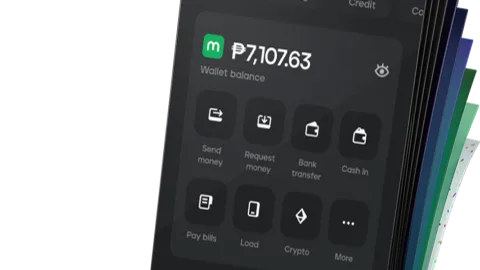
Diagnosing Common Maya Payment Glitches
Digital payment gateways are remarkably reliable, processing millions of successful transactions daily across the Philippines. However, during evening peak hours, occasional telecommunications congestion or mobile browser conflicts can interrupt the payment flow.
Understanding why an error occurs is the first step toward fixing it quickly. Let us examine the three most common payment snags experienced by mobile gamers.
The SMS OTP Verification Delay During Busy Network Hours
Between 7:00 PM and 10:00 PM in the Philippines, cellular networks experience peak traffic. If Maya dispatches an SMS One-Time Pin (OTP) across overloaded carrier relays, the text message may arrive past the three-minute expiration window.
Entering an expired six-digit OTP will trigger an "Invalid Code" error. Recognizing that telecom latency is the culprit allows you to use alternative in-app verification methods instead of repeatedly requesting codes.
The Browser Session Timed Out Notification on Mobile Browsers
If you take too long to switch between your mobile browser and the Maya app, or if your phone aggressively puts background tabs to sleep, you will encounter the "Session Expired" screen.
Payment gateways enforce strict three-minute security timers to protect unattended sessions. Understanding this timer prevents frustration and reminds you to execute transfers smoothly.
Insufficient Wallet Balance After Accounting for Pre-Existing Holds
Sometimes a player attempts a ₱500 transfer knowing they had ₱500 earlier, only to see the payment decline. This often occurs because another pending charge or subscription hold reduced the available spending balance.
Always verify your available spending balance inside the Maya home screen before initiating a deposit request on partner gaming portals.
Actionable Steps to Resolve SMS OTP Delays
If you are stuck waiting for an OTP text message that refuses to arrive, do not keep smashing the "Resend Code" button. Multiple requests queue up and invalidate previous codes.
Apply these practical mobile troubleshooting fixes to restore prompt code delivery.
Switching Between Wi-Fi and Cellular Mobile Data
Sometimes home Wi-Fi networks suffer intermittent DNS delays that slow down incoming carrier messaging handshakes. Toggle your Wi-Fi off and switch directly to Smart or Globe 4G/5G mobile data.
A fresh cellular connection often forces the local telecom tower to deliver queued SMS messages to your handset immediately.
Disabling Aggressive Spam Filtering on Android Messaging Apps
Modern Android messaging apps (such as Google Messages or Samsung Messages) include aggressive automated spam protection. Occasionally, automated short-code messages from financial institutions are mistakenly filtered into the "Spam & Blocked" folder.
Open your messaging app settings, navigate to "Spam Protection", and verify that Maya verification short-codes are not accidentally blocked. Whitelisting these senders ensures instant notification.
Using Maya In-App Push Notification Approvals as an Alternative
The most permanent solution to SMS lag is enabling push notifications inside your Maya app. Push notifications travel over the internet rather than cellular SMS networks.
When you initiate a checkout, Maya delivers an instant popup directly to your lock screen. You tap the banner, scan your fingerprint, and approve the payment in two seconds without waiting for any text message.
Resolving Browser Gateway Session Failures
When mobile browsers like Chrome, Safari, or Brave accumulate outdated cache cookies, payment redirect loops can occur. Resolving these browser conflicts takes less than thirty seconds.
Follow these quick browser cleanup steps to ensure smooth checkout redirection.
Clearing Mobile Safari or Chrome Cache and Site Data
Stale website cookies can cause the Maya checkout gateway to load an expired session token from a previous day. To fix this, open your browser settings and clear your browsing data and cached images.
Clearing stale data ensures the portal creates a pristine, encrypted checkout channel for your new transaction.
Opening the Payment Window in an Incognito Tab to Bypass Stale Cookies
If you prefer not to clear your entire browser history, simply open your gaming portal in an Incognito or Private Browsing window. Private tabs ignore pre-existing cookies and extensions entirely.
Incognito browsing provides a clean slate, ensuring the Maya payment gateway executes without script interference or cookie clashes.
What to Do if Funds Were Deducted but Not Credited
The single most alarming scenario for any player is seeing money deducted from their Maya wallet while the gaming balance remains at zero pesos. Rest assured: your money is never lost.
This momentary mismatch happens when a network disconnection prevents the gateway from sending the final confirmation signal to the casino server. Here is how to recover your funds immediately.
Locating the Maya Twelve-to-Sixteen Digit Reference Number
Open your Maya app and tap the "Activity" button at the bottom navigation bar. Locate the transaction where the deduction occurred and tap on it to view the full receipt.
Near the bottom of the receipt, you will find a unique reference number (usually 12 to 16 alphanumeric characters). Take a clear screenshot of this screen and copy the reference ID to your clipboard.
Submitting Transaction Logs to Customer Support for Instant Manual Credit
Return to your gaming portal and click the twenty-four-seven live support chat icon. Send a friendly message: "Good day, my Maya deposit of ₱500 was deducted but not credited. Here is my Reference ID: [paste ID]."
Attach your screenshot. The support representative will query the payment database, verify the incoming merchant settlement, and manually add the credits to your account in under ten minutes.
Rest assured that our partner support desks maintain continuous synchronization with Maya merchant operations. Every valid electronic payment voucher is reconciled with total financial transparency and speed.
You will never have to wait hours for automated tickets to resolve when you provide clear transaction receipts to our live operators.
Resolving Geofencing Alerts and Hardware Sensor Glitches
Modern fintech security systems enforce regional geofencing rules and hardware authentication standards. Understanding these mobile parameters ensures you can fix rare device errors without stress.
Review these quick device adjustments if your Maya app throws an unprompted security restriction.
Managing Location Permissions and VPN Conflicts
Bangko Sentral ng Pilipinas cybersecurity guidelines require digital banks to verify transaction origin geography. If you have an active Virtual Private Network (VPN) enabled on your phone routing your traffic through Singapore or the United States, Maya will block payments.
Temporarily turn off your third-party VPN before launching the payment gateway. Ensure Maya has permission to access your device's coarse location so it can verify domestic Philippine network routing.
Handling Biometric Hardware Sensor Failures
If moisture or dust on your smartphone camera lens prevents Face ID from recognizing your face, do not panic. Repeated failed attempts can lock your biometric login for fifteen minutes.
Tap "Cancel" on the camera prompt and enter your standard six-digit Maya Mobile PIN (MPIN) manually. Manual MPIN input provides an instantaneous fallback that clears payments without delay.
Frequently Asked Questions
Why did my Maya show 'Payment Failed' after I entered the OTP?
This typically occurs if the OTP took longer than 3 minutes to enter, or if your mobile network experienced a brief packet loss during transmission. Funds are usually not deducted; simply start a fresh payment request.
My money was deducted from Maya but game balance is ₱0. What happened?
Do not worry—your funds are 100% safe. This happens when a network timeout interrupts the webhook signal between Maya and the casino. Take a screenshot of the Maya receipt and send the reference ID to 24/7 live chat for instant manual crediting.
How do I contact Maya support directly for disputed charges?
You can reach Maya customer care by dialing *788 for free using any Smart or TNT mobile number, or dial (02) 8845-7788 from any domestic landline.
Can I use Maya without receiving an SMS OTP on every payment?
Yes. Enabling biometric authorization and push notifications inside the Maya mobile application allows you to approve transactions via Face ID or fingerprint directly in the app without SMS text codes.
How long does a manual balance credit take after showing proof?
Once you provide customer support with a valid Maya transaction receipt and reference ID, manual verification and balance crediting typically takes only 5 to 10 minutes.
Manage Your Gaming Balance Today
Transfer funds securely via GCash, Maya, and local bank transfers with zero hidden deductions and rapid turnaround on partner portals.