NinoGaming GCash Cash In Steps and Transfer Walkthrough
Fund your NinoGaming account using GCash in under two minutes. Follow dynamic QR code steps to complete payments with zero extra service charges.
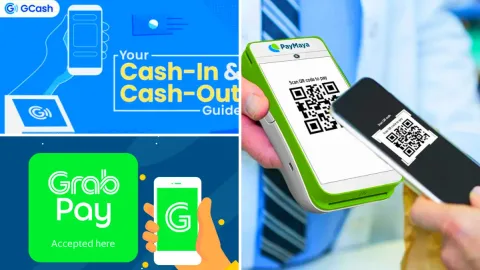
Preparing Your GCash Account for a Smooth Transfer
Before launching your first cash-in on partner gaming platforms, taking a brief moment to check your GCash setup prevents unexpected transaction delays. Ensuring that your mobile wallet is in proper working order saves you time and effort.
Millions of Filipino mobile gamers rely on GCash daily for its simplicity. By verifying key profile details beforehand, you guarantee that funds flow into your gaming wallet within sixty to one hundred and eighty seconds.
Ensuring Sufficient E-Wallet Balance Plus Account Verification Tier
Check your GCash mobile app to confirm you have enough balance to cover your intended cash-in sum. If your balance is low, top up via standard 7-Eleven Cliqq kiosks, bank transfers, or linked debit cards before starting.
Additionally, verify that your GCash account has reached "Fully Upgraded" status. Fully registered accounts enjoy monthly inbound limits of ₱100,000 to ₱500,000, ensuring your transactions never get blocked by basic tier restrictions.
Verifying That Your Registered Phone Number Matches Your Profile
Under domestic financial compliance standards, your gaming account name must match the registered legal name on your GCash account. This prevents unauthorized third-party transfers and guarantees smooth cash-outs later.
Never attempt to fund your gaming balance using a friend or relative's GCash account. Always transact directly from your own personal e-wallet to maintain clean account compliance.
Step-by-Step Dynamic QR Code Transfer Protocol
The fastest and most reliable way to deposit funds is via the dynamic QR code gateway. Dynamic QR codes eliminate manual typing errors because the exact amount and recipient identifier are embedded into the image.
Follow these four simple steps on your smartphone to complete your cash-in in under two minutes.
Initiating the Deposit Request in the Portal Payments Menu
Log in to your gaming account on your mobile browser and navigate to the "Deposit" or "Payments" tab. Select "GCash QR" from the list of supported channels.
Choose your desired cash-in amount from the quick-pick buttons (such as ₱200, ₱500, or ₱1,000) or enter a custom amount between ₱100 and ₱50,000. Tap "Submit" to generate your dynamic checkout invoice.
Saving or Scanning the Dynamic QR Code Before the Five-Minute Expiry
The screen will display a unique black-and-white QR code alongside an active countdown timer. You have five minutes to complete the payment before this security code expires.
Take a quick screenshot of the QR code on your phone screen. If you are playing on a laptop or desktop computer, simply hold up your smartphone to scan the computer monitor directly.
Confirming the Exact Amount in the GCash mobile application
Open your GCash mobile app, tap the "QR" button at the bottom navigation bar, and select "Upload QR from Gallery". Select the screenshot you just captured from your photo library.
The GCash app will automatically decode the image and populate the exact merchant payment fields. Review the details, tap "Pay", and allow the transaction to complete.
Alternative Transfer Method: Direct Express Send
On rare occasions when dynamic QR gateways undergo routine maintenance, portals offer a direct Express Send alternative. Express Send allows you to transfer funds wallet-to-wallet directly to an authorized receiver mobile number.
This fallback method ensures you can always fund your balance even if automated QR servers are momentarily resting.
Entering the Designated Receiver Mobile Number and Name
In the deposit menu under "GCash Express Send", the portal will display an active mobile phone number and merchant recipient name. Copy this number carefully to your clipboard.
Open GCash, tap "Send Money", choose "Express Send", paste the copied phone number, and enter your exact deposit amount in Philippine Pesos.
Typing Your Account User ID into the Optional Message Field
Before tapping the final pay button in GCash, locate the optional "Message" text box. Type your gaming account username or member ID into this field.
Including your username in the message allows the portal accounting team to match your incoming transfer to your profile instantly. This eliminates delays and speeds up manual balance crediting.
Capturing and Verifying Payment Receipts
Financial safety is paramount in online gaming. Taking five seconds to save your transaction proof gives you complete control over your money.
Develop this simple habit on every single cash-in to protect yourself against occasional mobile network drops.
Screenshotting the Complete In-App Transaction Confirmation
Immediately after tapping "Pay" in GCash, a confirmation screen appears showing "Payment Successful" with green checkmarks. Capture a clear screenshot of this screen before tapping "Done" or closing the app.
Keep this screenshot in your phone gallery until you return to your gaming tab and verify that your balance has increased by the deposited amount.
Locating the Thirteen-Digit GCash Reference Number for Support Records
Every successful GCash transfer displays a unique thirteen-digit reference code (for example: 1002 9384 7561 0). This code is your permanent receipt in the Philippine financial banking network.
If your balance does not update within three minutes due to telecom lag, simply open twenty-four-seven live support, paste this thirteen-digit number, and an agent will credit your wallet on the spot.
Common Cash-In Mistakes and How to Avoid Them
Most deposit issues stem from minor procedural mistakes that are easily avoided. Review these common pitfalls to keep your transactions running smoothly.
Paying attention to small details guarantees a smooth mobile entertainment session every time you play.
Never Re-Use Expired Dynamic QR Code Screenshots
A dynamic QR code is designed for single-use security only. Never save yesterday's QR code screenshot and attempt to pay through it again today.
Attempting to pay an expired QR code will cause funds to enter unassigned banking holding queues, requiring manual support intervention to recover. Always generate a fresh QR code for every individual deposit.
Do Not Modify the Pre-Set Transfer Amount
When the dynamic QR code generates an invoice for ₱500, pay exactly ₱500 in GCash. Do not alter the sum to ₱499 or ₱501.
Automated payment webhook bots match incoming transfers by exact monetary value. If the amount differs by even one peso, the automated bot cannot match the payment to your ticket, triggering an unnecessary delay.
QR Ph Interoperability Standards and Signal Optimization
The Philippines uses the national QR Ph standard governed by the Bangko Sentral ng Pilipinas. This standard ensures that digital QR payment codes are universally readable across compliant domestic financial apps.
Understanding how QR Ph functions helps you keep transfers moving even if you encounter localized connectivity challenges.
Scanning Across Interoperable Mobile Banking Applications
If your primary GCash app experiences an unexpected crash or momentary maintenance, you can often scan the QR Ph code using partner digital banking apps like Maya, SeaBank, or GoTyme.
The payment will route smoothly over the national switch directly to the merchant, depositing your funds without needing to wait for GCash to reopen.
Mobile Network Signal Optimization in High-Density Areas
When playing in crowded shopping malls, transport hubs, or provincial areas with spotty cell reception, dynamic QR invoices can take longer to generate.
Ensure you have at least three bars of cellular signal or connect to a secure private Wi-Fi connection before initiating payment. This prevents browser disconnects while the QR code is rendering on your display.
Frequently Asked Questions
Why did my generated GCash QR code show as expired?
Dynamic QR codes are equipped with a 5-minute security countdown to protect against replay attacks. If the timer runs out before you complete payment, simply generate a fresh QR code from the deposit menu.
Can I use GCash Express Send if the QR scanner is not working?
Yes. If your phone scanner has issues decoding QR images, select the Express Send option, copy the provided mobile number, and enter your gaming user ID in the message box before transferring.
How long does a GCash cash in take to show in my game balance?
Under normal cellular network traffic, automated webhook integration credits your gaming balance within 60 to 180 seconds after confirming payment in GCash.
Does GCash charge a fee for sending money to gaming portals?
No. Standard wallet-to-merchant and QR payments incur ₱0.00 service fees on both GCash and partner gaming portal ends.
What is the 13-digit reference number and why is it important?
The 13-digit reference number is your unique transaction receipt generated by GCash. It serves as undeniable mathematical proof of payment that customer support can instantly query to verify your transfer.
Manage Your Gaming Balance Today
Transfer funds securely via GCash, Maya, and local bank transfers with zero hidden deductions and rapid turnaround on partner portals.